[HAI5016] (dev) Containers
This week let’s activate your Google Cloud for Education Credits and explore GitHub Codespaces containers for our data science projects.
Disclaimer: This blog provides instructions and resources for the workshop part of my lectures. It is not a replacement for attending class; it may not include some critical steps and the foundational background of the techniques and methodologies used. The information may become outdated over time as I do not update the instructions after class.
1. Redeem Your Google Cloud for Education Credits
- Open the e-mail that I sent you with the subject “Your Google Cloud Education Credits” and click the “Student Coupon Retrieval Link”
- In the form that opens, enter your name and SKKU Google account (@g.skku.edu) e-mail address and click “Submit”
- You will receive an e-mail from Google Cloud with a link to verify your e-mailadress. Click the link in the e-mail.
- After verifying your e-mail address, you will receive another e-mail from Google Cloud with your Google Cloud Coupon Code. This e-mail also contains the link to directly redeem your credits.
- Click the link in the e-mail or go to Google Cloud Console Billing Page and select “Manage billing accounts”
- Click “Redeem a code”, enter your name and the Google Cloud Coupon Code from the e-mail
- Click “Accept & Continue” to apply the credits to your account
This should lead you to the billing account overview page.
Verify Your Credits
No credit card information is needed to activate your Google Cloud Education Credits!
Go to Google Cloud Console
- In the Google Cloud Console, go to the Billing Overview Page
-
Find the
creditsmenu on the left sidebar and click it
Here you should find your freshly redeemed $50 Google Cloud Education Credits.
Create a Google AI Studio API Key
- Go to Google AI Studio
- Click
Create a new key - Give a name to your API key, e.g.,
HAI5016-25-Key -
Select a project or create a new one for this key (e.g.,
HAI5016-25-Project)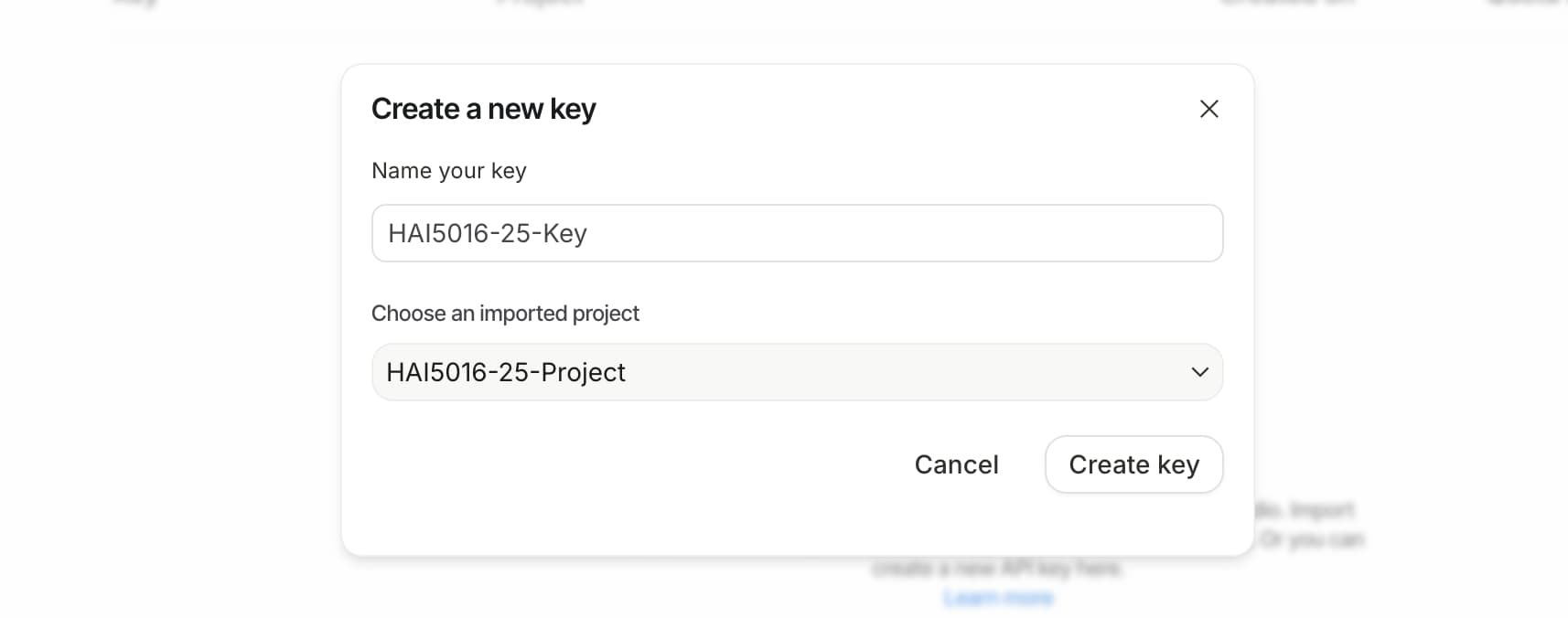
- Click
Create
Link the project to your Google Cloud Billing Account
- Open the Google Cloud Console
-
Open the project picker in the top navigation bar and select the project you created for your API key (e.g.,
HAI5016-25-Project)
- Find the ‘Billing’ menu on the left sidebar and click it
- Click
Link a billing account -
Select your billing account with the redeemed education credits and click
Set account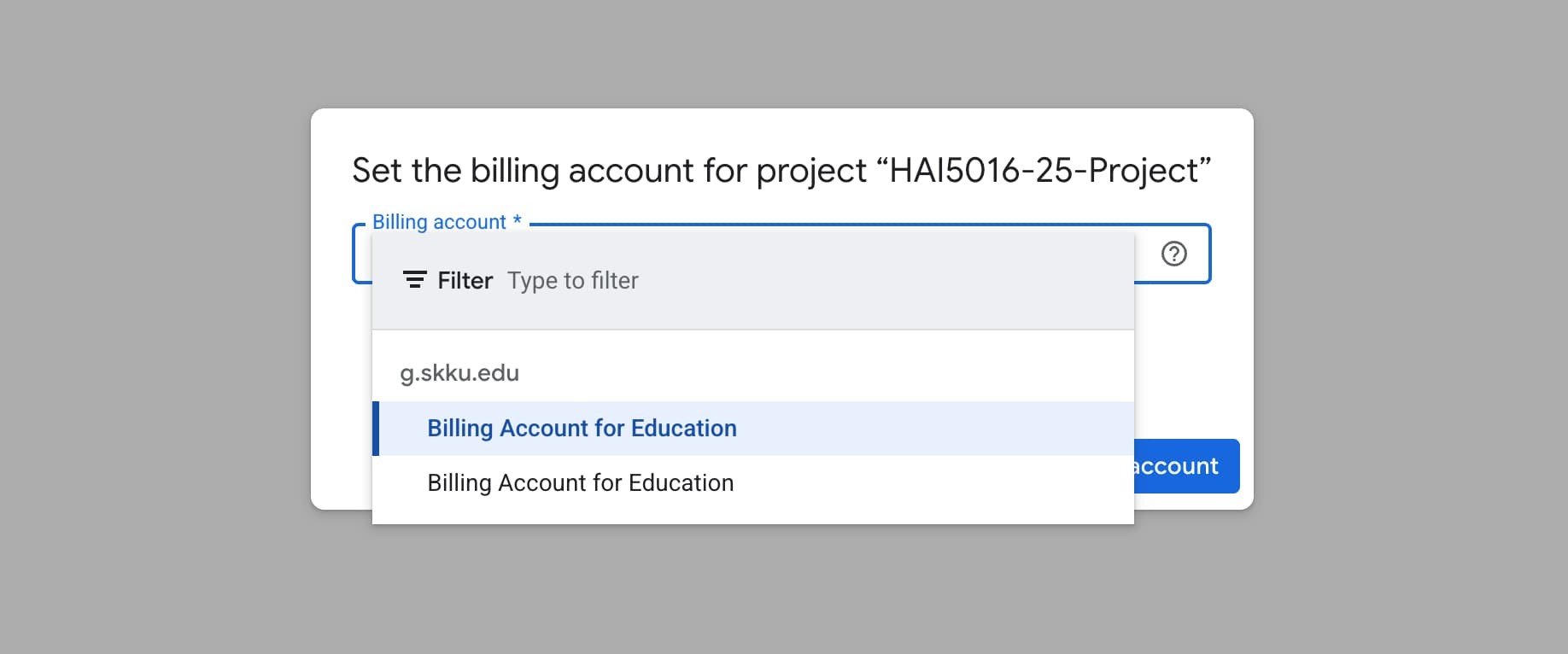
Check again in Google AI Studio
- Go back to Google AI Studio API Keys
- Find your key and check the Quota column
-
If not in Tier 1, click on “Set up billing”

- In the Google Cloud Console page, clik on ‘Link a billing account’ and select your billing account as shown in the previous steps.
2. Explore GitHub Codespaces Containers
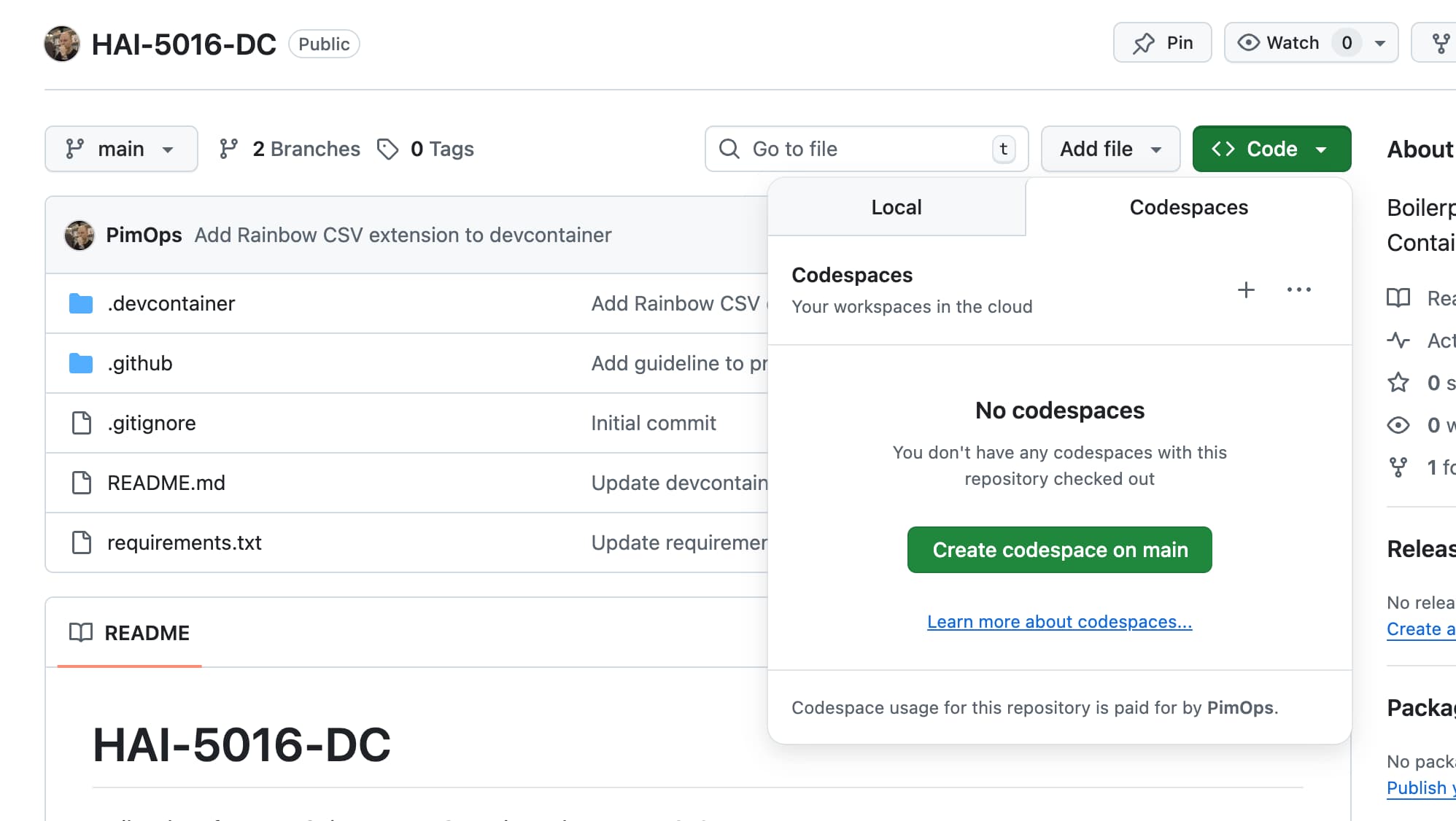
- Fork https://github.com/PimOps/HAI-5016-DC/ to your GitHub account
- Open the repo in GitHub Codespaces (or clone it locally and open it in VS Code if you have docker installed)
- See how the container is being built
- Discover the files in the repository
When time allows, we can try to predict the Seoul Bike Sharing Demand dataset using GitHub Copilot in the codespace container based on file
https://camphouse.me/assets/csv/SeoulBikeData.csv