[HAI5016] Week 8: Azure OpenAI Studio Model Deployments
Model deployments in Azure OpenAI Studio
Due to midterms, there will be no lecture this week. Instead, I want to ask you to prepare for next week’s class by deploying models in Azure OpenAI Studio.
Required Models for Deployment
You will have to deploy the following models in order to be able to use them in class next weeks:
gpt-4o-minitext-embedding-3-small
Deploy models
- Open the Azure OpenAI Studio landing page
-
On the Azure OpenAI Studio landing page, find
Deploymentslink under theShared Resourcessection in the left navigation menu.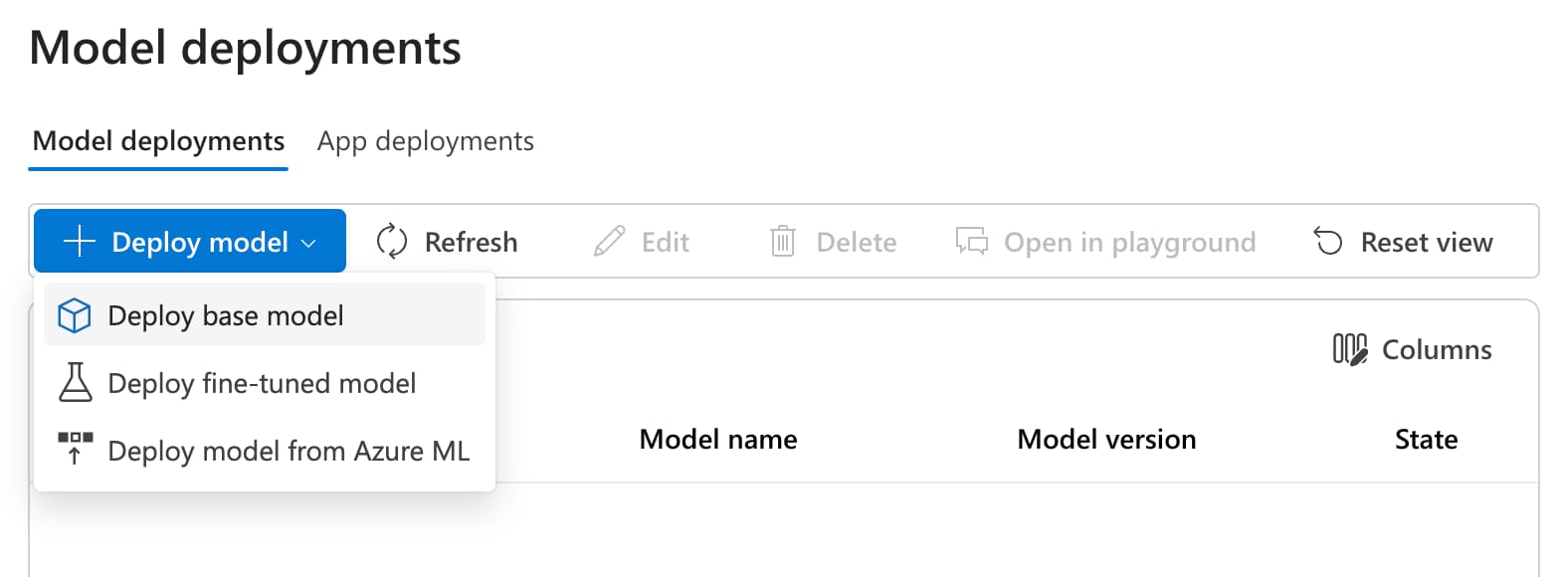
- Click
+ Deploy Modeland selectDeploy base model:- Find the Chat Completion model
gpt-4o-miniand click Confirm - Deployment name:
gpt-4o-mini - Deployment type:
Global Standard - Click Deploy
- Find the Chat Completion model
- Now do the same for the text embedding model:
- Click
+ Deploy Modeland selectDeploy base model. - Find the Text Embedding model
text-embedding-3-smalland click Confirm - Deplyment name:
text-embedding-3-small - Deployment type:
Standard - Click Deploy
- Click
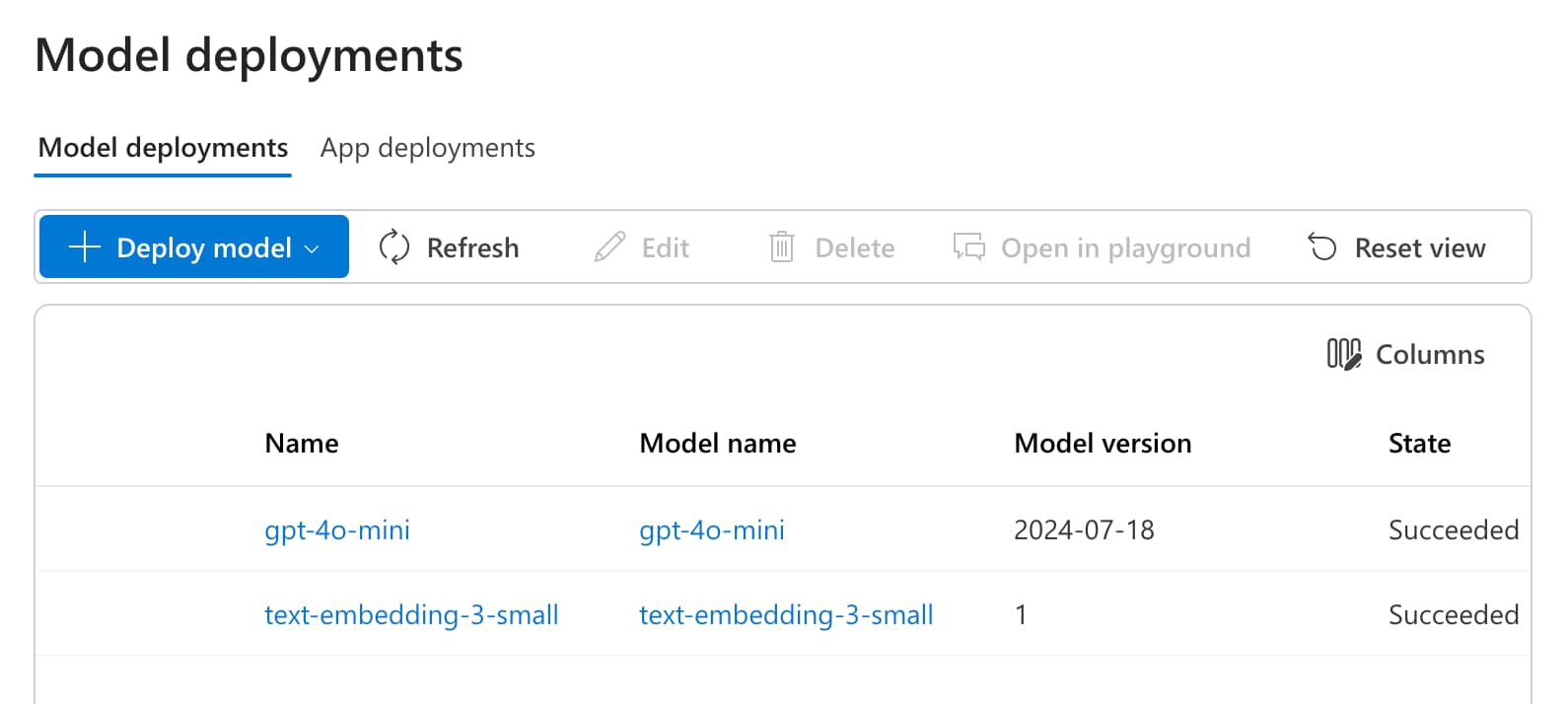
After completing the above, your Model Deployments page should display at least both models as successfully deployed:
Increase token limit
By default, the token limit for the gpt-4o-mini model is set to 1K tokens per minute. You can increase this limit by clicking on the model and then clicking on the Edit button. You can then increase the token limit to (around) 200K tokens per minute.

If you face any limitation errors during deployment, or cannot increase the token limit above 1K, you will have to request an increase in the token limit by clicking on the
Request Increasebutton on the Quota page. You will have to provide a reason for the increase in the token limit, which the details can be found in this post.