[HAI5016] Week 4: JSON and API's

This week’s class is about API’s and our dear friend JSON. After the student’s presentations, we will deploy our Azure OpenAI instance and request increase of the 1K token quota that Microsoft enforces on student subscriptions by default.
Before following the instructions below, make sure that your Azure for Students Subscription is active.
1. Deploy an Azure OpenAI instance in Azure
Open Azure OpenAI studio via https://oai.azure.com/
-
Create an Azure OpenAI resource:
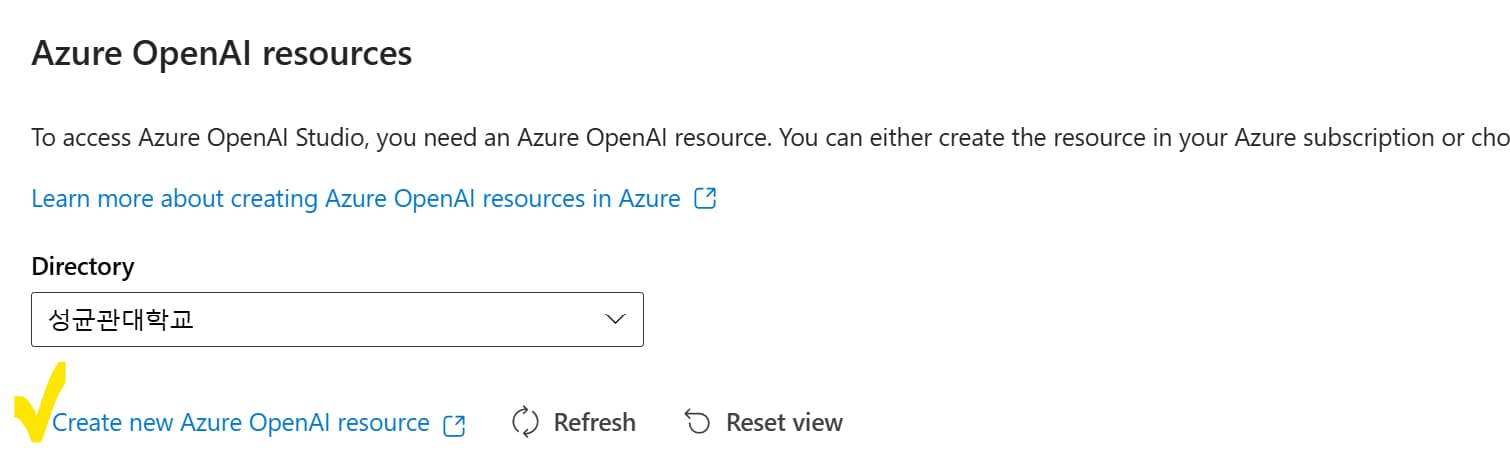
- Subscription:
Azure for Students - Resource group: click Create new ->
HAI5016 - Region: Keep the
East USoption selected - Name: Make a name starting with firsthai- and then some random characters. Like
firsthai-hrn8c29 Pricing tier: Select the
Standard S0option- For (2) network, (3) Tags and (4) Review + Submit, just click Next and Create
Azure OpenAI resources are constrained by regional quotas. In the event of a quota limit being reached in the exercise, there’s a possibility you may need to create another resource in a different region. Select randomly from Australia East, Canada East, East US, East US 2, France Central, Japan East, North Central US, Sweden Central, Switzerland North or UK South.
- Subscription:
2. Deploy a chat completion and embedding model in Azure OpenAI Studio
We’re going to use two Large Language models in this course: (1) a text embedding model to vectorize the text in our own data so it can be indexed efficiently for use in grounding prompts and (2) a GPT model that your application can use to generate responses to prompts that are grounded in our data.
Open the Azure OpenAI Studio landing page
On the Azure OpenAI Studio landing page, find
Deploymentslink under the Shared Resources section in the left navigation menu. Click+ Deploy Modeland selectDeploy base model.Find the Chat Completion model
gpt-4o-miniand click Confirm.Deploy the model with the following settings:
- Deployment name:
gpt-4o-mini - Model version: Select the latest version (
2024-07-18as the moment of writing) - Deployment type:
Global Standard - Content filter:
Defaultor Default V2 - Enable dynamic quota:
EnabledHere we will select a model that has a good balance between pricing and performance. For the pricing details of the various models, see Azure OpenAI pricing
- Then, create a new base model deployment of the text-embedding-3-small model with the following settings:
- Deployment name:
text-embedding-3-small - Model:
text-embedding-3-small - Model version: The default version
- Deployment type: Standard
- Tokens per minute rate limit:
120K - Content filter:
Default - Enable dynamic quota:
Enabled
3. Request a quota increase (updated Apr 13th, 2026)
Because it seems that student subscriptions have limited deployment options by default, we have to request for Quota Increase in order to use the OpenAI (or Anthropic) models that I have planned to use in the exercises. The quota request process can take up to 24-48 hours, so make sure to do this as soon as possible.
- Go to the landing page of your Microsoft Foundry at https://ai.azure.com/
- Make sure that
New Foundryis selected - Click on
Operatein the top menu - Click on
Quotain the left menu - Click on the
Request quotabutton in the top right corner of the page.
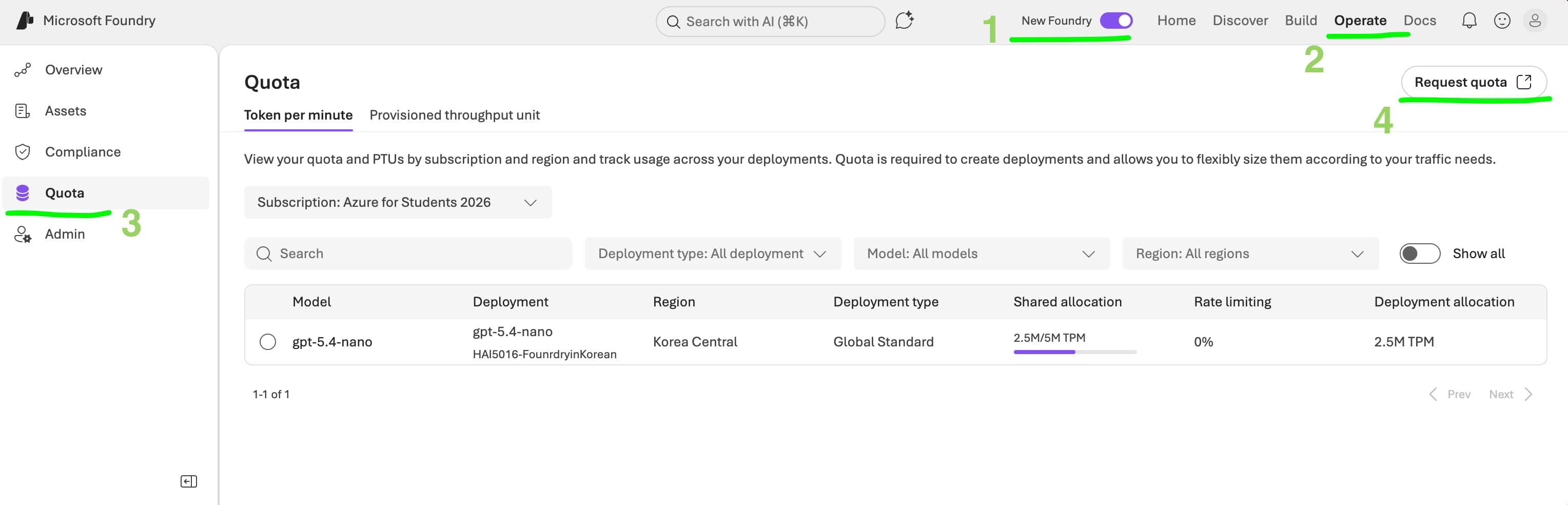
Fill in the quota request form with the following information:
- Your first name
- Your last name
-
Company Email: use your
@g.skku.eduor@skku.eduemail address -
Company Name:
Sungkyunkwan University -
Company Address:
25 , Sungkyunkwan-Ro -
Company City:
Seoul -
Company Postal Code:
110-745 -
Company Country:
South Korea -
Subscription Id: This is the ID of your Azure for Students subscription. This ID can be found in the URL-bar of your Azure OpenAI Studio tab, or find it in the subscriptions blade on Azure Portal.
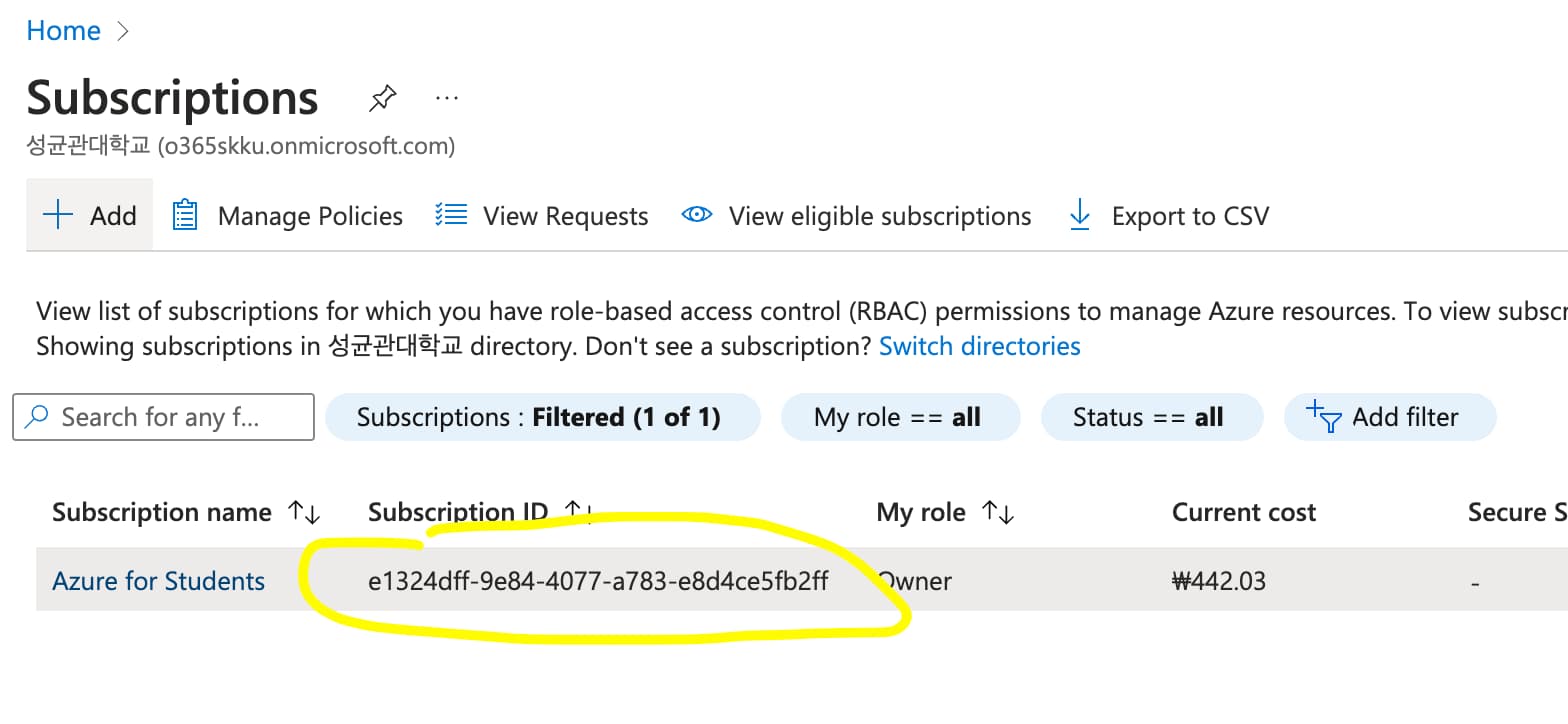
Make sure to copy the correct and full subscription ID, as the quota request will be rejected if the subscription ID is incorrect.
- Justification: here you can write
1

   Need to deploy a GPT model to follow along the tutorial which is used in my class (https://learn.microsoft.com/en-us/azure/foundry/quickstarts/get-started-code)
-
Model type:
Azure OpenAI -
Model Deployment Quota or Fine Tuning Quota:
Model Deployment -
Quota Request Type:
Global Standard - Global Standard Region: Select the region where you deployed your Azure Foundry resource. You can find this in your azure portal or in the project settings on top of the Foundry page.
-
Global Standard Model:
gpt-5-nano -
Global Standard Quota:
400