[HAI5016] Codespaces and real FX
In our previous class we wrapped our Azure model in a LangChain agent gave it some tools to interact with outside of its inbuilt knowledge. We built a simple web-scraping tool and a dummy FX conversion function, then we connected those to the agent and watched it call them in real time.
Today we continue the project with three practical upgrades:
- We look into Codespaces as a way to make our development environment more portable and easier to set up on any machine
- We add LangSmith to make our agent’s behavior more transparent and easier to debug
- We replace the dummy FX function with a real API call to get live exchange rates
Disclaimer: This blog provides instructions and resources for the workshop part of my lectures. It is not a replacement for attending class; it may not include some critical steps and the foundational background of the techniques and methodologies used. The information may become outdated over time as I do not update the instructions after class.
1. Optional: Set-up GitHub Codespaces for a cloud development environment
This is not a required step for most of you; I mainly showed it because I keep having to reinstall our data science toolkit every single week before class. Despite the deployment script that I wrote (see [HAI5016] Get your systems ready) I still need to manually login to several services and collect API keys before class starts, which is a hassle and leads to a lot of wasted time whenever I forget a step.
Codespaces gives me an easier fallback: my code is already on GitHub, so I can open a browser-based development environment that looks very similar to the one we normally use in class.
You may find this useful too if:
- you like to work on the same project on more than one computer
- you sometimes need to use a lab machine, tablet, or borrowed device
- you do not want to reinstall your whole environment every single time something breaks
For everyone else, this section is optional. Your normal local setup is still perfectly fine.
1.1 Add a dev container definition to your repository
Before you can open a Codespace, your repository needs to tell GitHub how to build the environment. You do that by adding a devcontainer.json file inside a .devcontainer folder at the root of your project.
You can copy the one from the example repository or create your own. Here is the file we used in class:
1
2
3
4
5
6
7
8
9
10
11
12
13
14
15
16
17
18
19

{
  "name": "hai5016-project (Python 3.11 + uv)",
  "image": "mcr.microsoft.com/devcontainers/python:3.11",
  "remoteUser": "vscode",
  "workspaceFolder": "/workspaces/${localWorkspaceFolderBasename}",
  "customizations": {
    "vscode": {
      "extensions": [
        "ms-python.python",
        "ms-toolsai.jupyter"
      ],
      "settings": {
        "python.defaultInterpreterPath": "${workspaceFolder}/.venv/bin/python",
        "python.terminal.activateEnvironment": true
      }
    }
  },
  "postCreateCommand": "export PATH=\"$HOME/.local/bin:$PATH\" && uv --version && uv venv .venv && uv sync"
}
What this file does, in plain English:
- it pulls a Python 3.11 dev container image as the base
- it installs
uvand creates a virtual environment in.venv - it runs
uv syncto install all dependencies frompyproject.toml— the same file thatuv addupdates every time you install a package - it tells VS Code to use that
.venvas the default Python interpreter - it preinstalls the Python and Jupyter extensions
Commit and push this file to your repository before moving on.
1.2 Open the Codespace
With the container definition in place, creating the Codespace is just a button click:
- Go to your repository on GitHub.
- Click the green
Codebutton. - Select
Create Codespace on master(or whatever branch you want to work on).
GitHub will open a VS Code environment in the browser. While it starts up, you will see it downloading the container layers, installing uv, and running uv sync. After a short wait, you are back inside your project folder — without having to reinstall anything by hand.
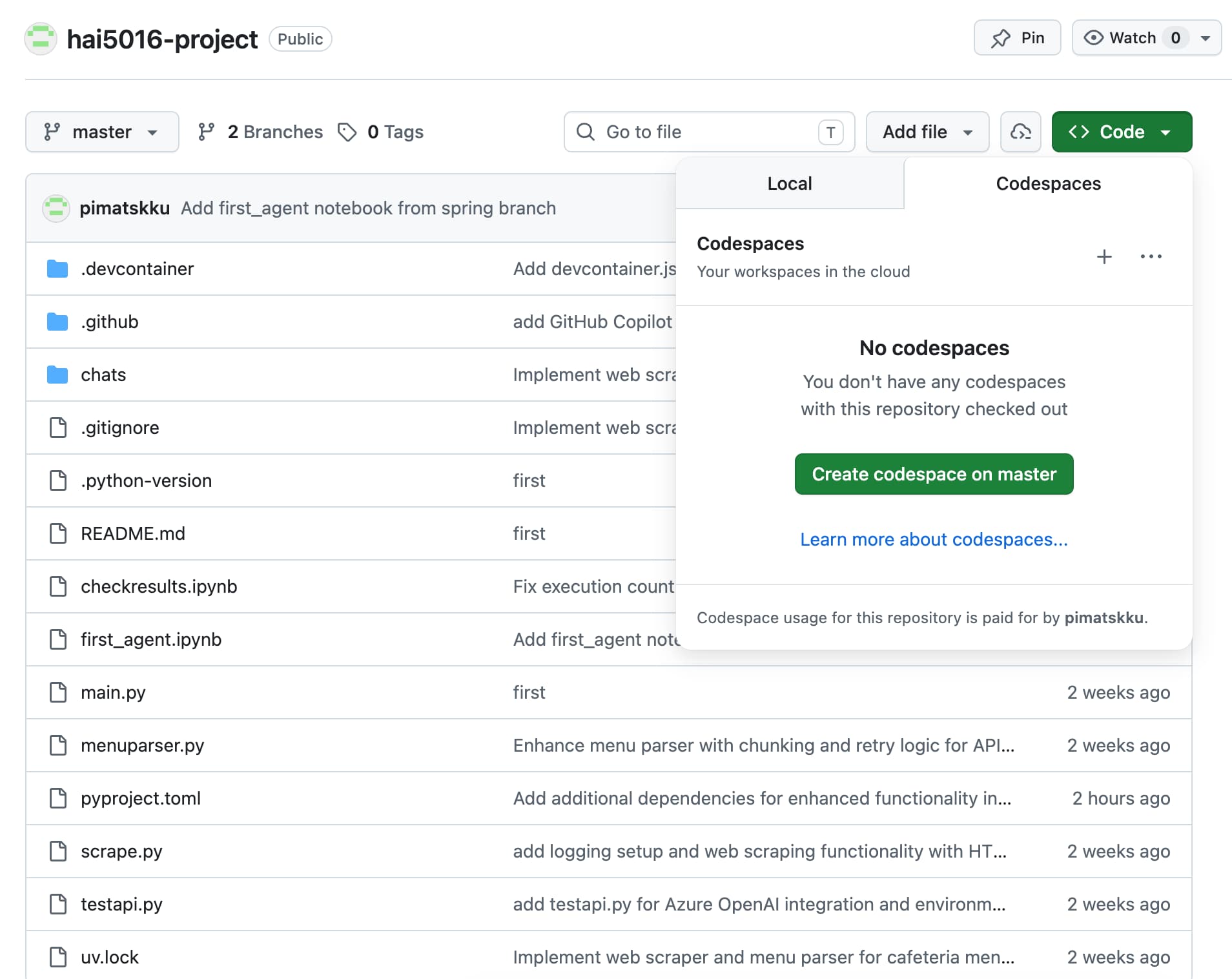 Create a Codespace from the repository
You did not need to follow along during class. I mainly showed this because from this point in the semester my screen will look a little different: I am working in the browser instead of on the classroom PC.
1.3 Create the Codespace and restore your secrets
Once the container definition is in the repository, creating the Codespace is mostly just a button click.
After clicking Code and Create Codespace on master, GitHub opens a very familiar-looking VS Code environment in the browser. While it starts up, it downloads the container layers, installs uv, and runs uv sync to install the dependencies from the project.
After a short wait, you are basically back inside your project folder and ready to work without having to rebuild the whole machine by hand.
The part I really wanted to emphasize in class, though, is this: the container only knows about what is in your repository. Anything you did not commit will not magically appear there.
So after the Codespace opens:
- wait for the environment to finish building
- open the project in the browser-based VS Code window
- check that the project files are there and that
uv syncfinished successfully - add or copy your
.envfile again - double-check that the notebook and Python environment still work
Codespaces are convenient, but your
.envfile is still your responsibility. Containers are stateless in that sense: everything you do not commit to the repository, including.env, will not be there automatically.
1
2
3

AZURE_OPENAI_API_KEY="..."
AZURE_OPENAI_ENDPOINT="..."
AZURE_OPENAI_DEPLOYMENT_NAME="..."
1.4 Maybe also update Copilot’s instructions
In class we also noticed that the existing .github/copilot-instructions.md file still talked about working on Windows or macOS. That made sense earlier, but once I started using a development container in the browser, those instructions became slightly wrong for my setup.
So I asked Copilot to rewrite the instructions for a development-container workflow instead. That is a nice real-world test: if Copilot understands the repository and the environment, it should be able to update those assumptions for us.
This is still optional, but it can help when you want Copilot to follow project-specific rules such as:
- where secrets are stored
- which files it should or should not edit
- which environment assumptions are correct
- how notebook experiments should be turned into cleaner code later
2. Set up LangSmith so we can see what the agent is doing
The second part of class was about making the agent understandable. When an agent starts calling tools and fetching websites, you want to be able to see what it is doing and why. That is what LangSmith is for.
2.1 Create an account and get an API key
Go to smith.langchain.com — the link is also in today’s slides. You can sign in with GitHub if you are already signed in on your machine, which saves you a registration step.
Once you are in, click Setup Tracing to get your API key. The setup screen gives you a block of environment variables to copy, but you do not need all of them. Strip it down to just these three:
1
2
3

LANGSMITH_TRACING="true"
LANGSMITH_PROJECT="HAI5016-Project"
LANGSMITH_API_KEY="..."
A few things to note:
-
LANGSMITH_ENDPOINTis not needed; LangSmith will use the default. -
LANGSMITH_API_KEYshould already be filled in by the setup screen, but double-check it. - The project name can be anything. I used
HAI5016-Project.
Because we are working in a stateless container, the
.envfile from last class is gone. That also means: add all your other credentials back —AZURE_OPENAI_API_KEY,AZURE_OPENAI_ENDPOINT, andAZURE_OPENAI_DEPLOYMENT_NAME.
2.2 Open the notebook and run it top to bottom
Open first_agent.ipynb from last week. Make sure the kernel is set correctly, then run the notebook from the top.
The cells run in order: imports load, the LLM instance is created, and by the time you run the cells that invoke the agent, LangSmith is already listening. Once a run completes, a new entry will appear automatically in your LangSmith dashboard under the project name you set.
2.3 Read what the trace is telling you
Click on a run in LangSmith. You will see:
- the total time the run took (it was 35 seconds for two restaurant pages)
- the token count before the first tool call — about 507 tokens just for loading the system prompt and user message into the context window
- each tool call listed separately, including the URL it fetched
- the final output rendered in Markdown right there in the dashboard
This is very useful when you are developing the agent, because it shows you exactly how the context window fills up across multiple rounds of tool calls, inputs, and outputs. Keep this tab open while you work.
3. Fix the scraping tool with Copilot inline chat
In the previous class the fetch_text_from_url tool extracted text from a div with id="wrapper". That only works for one specific page layout. It was already causing an error when tested against other sites, so let’s fix it.
3.1 Use Ctrl+I to make the change
Select the body of the fetch_text_from_url function, press Ctrl+I to open the Copilot inline chat, and tell it:
1

Remove the wrapper part from this script
Copilot will suggest replacing the wrapper lookup with soup.find("body"), which gives us the full page text regardless of how that specific site structures its HTML. Accept the suggestion.
1
2
3
4
5

body = soup.find("body")

if body:
    return body.get_text(strip=True)
return "Body tag not found"
Run the cell directly to test the function against a URL before connecting it to the agent. You should get a wall of text, which is exactly what we want.
3.2 Test with two URLs in one prompt
Now add two restaurant URLs to the user message and run the agent. Watch your LangSmith trace as it runs. You will see the agent call fetch_text_from_url twice — once per URL — before composing a single answer with both menus.
The tool is designed to receive one URL at a time. The agent calls it once per URL on its own. You cannot pass two URLs into a single tool call; the function would break. The agent handles this correctly as long as your docstring and system prompt are clear.
The response will take longer than a single-page run — but that is the price of context. The model is now ingesting both pages before answering.
4. Clean up the notebook
Before committing, remove the test cells that were only useful during development. In our notebook, that meant:
- the cell that tests the LLM with “What is the capital of South Korea?” — we know it works
- the cell that tests the dummy
get_fxfunction — we are about to replace it
Keep the bfmsgs helper function. It is still useful for rendering the agent’s responses.
Clear all cell outputs before committing so you are not pushing a notebook full of old traces and walls of scraped text.
Remember: you are working in a stateless container. Any changes you do not commit will be gone the next time you open the Codespace. Commit the cleaned notebook now.
5. Make the FX function real
Our get_fx function from last week always returned 1500. That was good for testing, but it is not useful in practice. Let’s replace it with a live API call.
5.1 Create an account at ExchangeRate-API
Go to exchangerate-api.com and sign up for a free account. Once you are in, copy your API key.
Add it to your .env file:
1

EXCHANGE_RATE_API_KEY="..."
The API endpoint we will use looks like this:
1

https://v6.exchangerate-api.com/v6/{api_key}/latest/KRW
This returns a JSON object with all current exchange rates relative to KRW. So if you want to know how many USD one KRW is worth, you look up USD in the conversion_rates field of the response.
5.2 Ask Copilot to rewrite the function
Open Copilot in agent mode and make sure your notebook is included as context. Then ask:
1

Create a function that takes a currency symbol like USD and returns the current conversion rate from KRW. Use the ExchangeRate-API at https://v6.exchangerate-api.com/v6/{api_key}/latest/KRW where the API key comes from EXCHANGE_RATE_API_KEY in the .env file.
Copilot will make changes across a few cells:
- update the imports to include
json - replace the dummy
get_fxwith a real implementation that loads the API key from the environment and fetches the live rate - add a quick test cell
Accept those changes. Then select just the part where the API key is constructed and press Ctrl+I to ask:
1

Load the API key from the environment instead of hardcoding it
This moves the key out of the URL string and into a variable loaded from os.environ, so you are not accidentally committing it.
5.3 Test the function and add it to the agent
Run the test cell. You should get back a small decimal like 0.00072 for USD — the current value of one KRW in US dollars. Try a few other currency symbols to make sure it works.
Then rebuild the agent with get_fx included in the tools list:
1
2
3
4
5

agent = create_agent(
    model=llm,
    tools=[fetch_text_from_url, get_fx],
    system_prompt=SYSTEM_PROMPT
)
Ask the agent to fetch the menu for two campuses and convert the KRW prices to another currency. What happens?
The model will check the pages, retrieve the menu items, and then — being an honest model — it will tell you the exchange rate it found and explain how the conversion works rather than just silently doing the maths. That is actually the right behavior: LLMs are not calculators, and a model that is self-aware about its limits is better than one that confidently hallucinates exchange-rate arithmetic.
6. Where this leaves us
By the end of class we had:
- a notebook that traces every agent run to LangSmith
- a scraping tool that works on any page, not just one specific layout
- a live exchange-rate tool that loads its API key safely from the environment
- a cleaned-up, committed notebook ready for next class
The model we are building is still fairly simple, but it is starting to feel like a real workflow. And importantly, it is now observable — you can open LangSmith and see exactly what the agent did, which tokens it spent, and which tools it called. That will matter a lot as the project grows.